Connect to Shopify
Connect your Shopify store to sync orders, products, and customer details in real time.
Written By ScaleFlows Team
Last updated 22 days ago
⚠️ Note: An active and paid Shopify account is required to connect.
Video Guide
Text Guide
Step 1. Go to Settings → Stores.
Step 2. Under the Infrastructure section, click on Shopify.
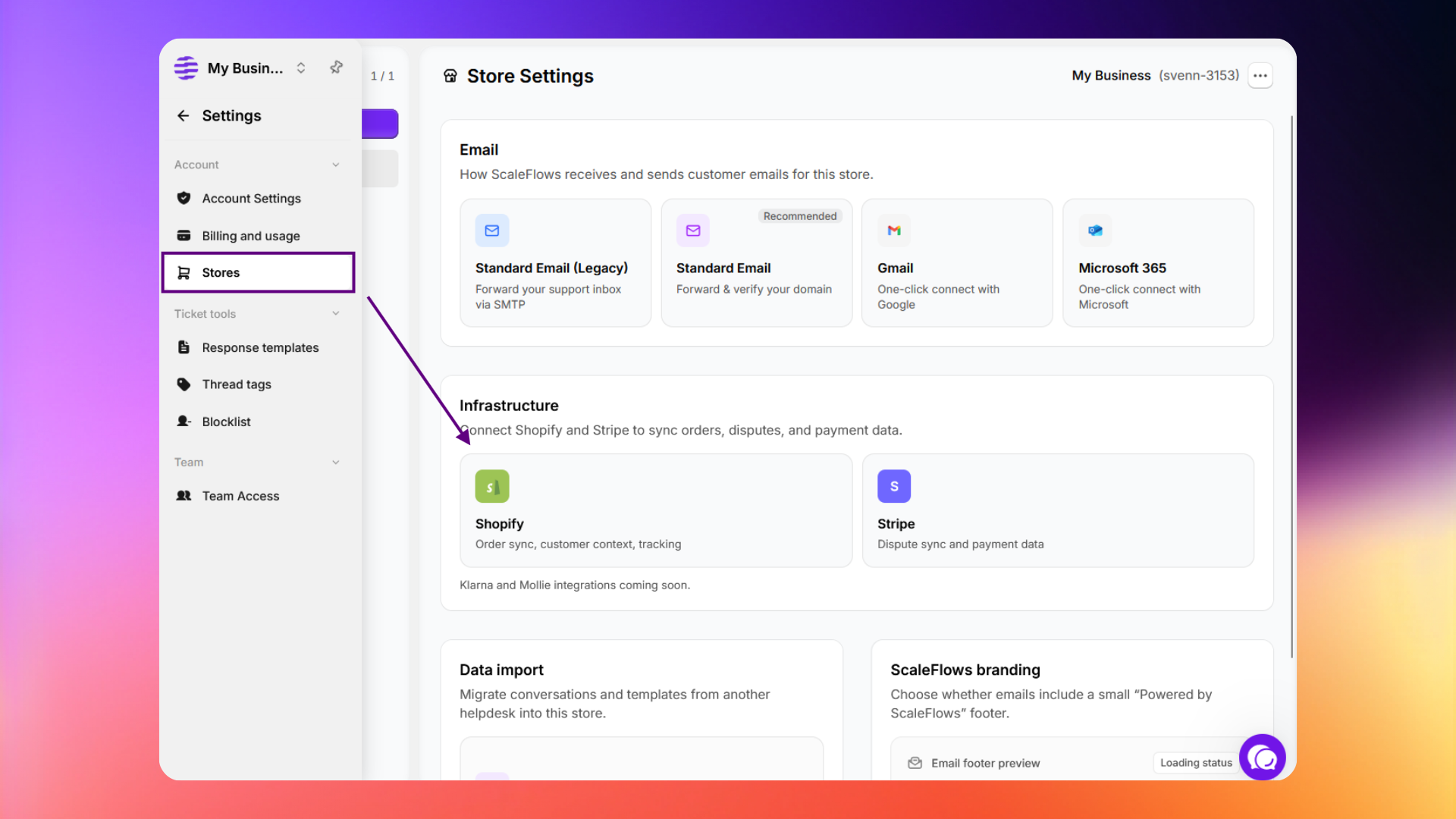
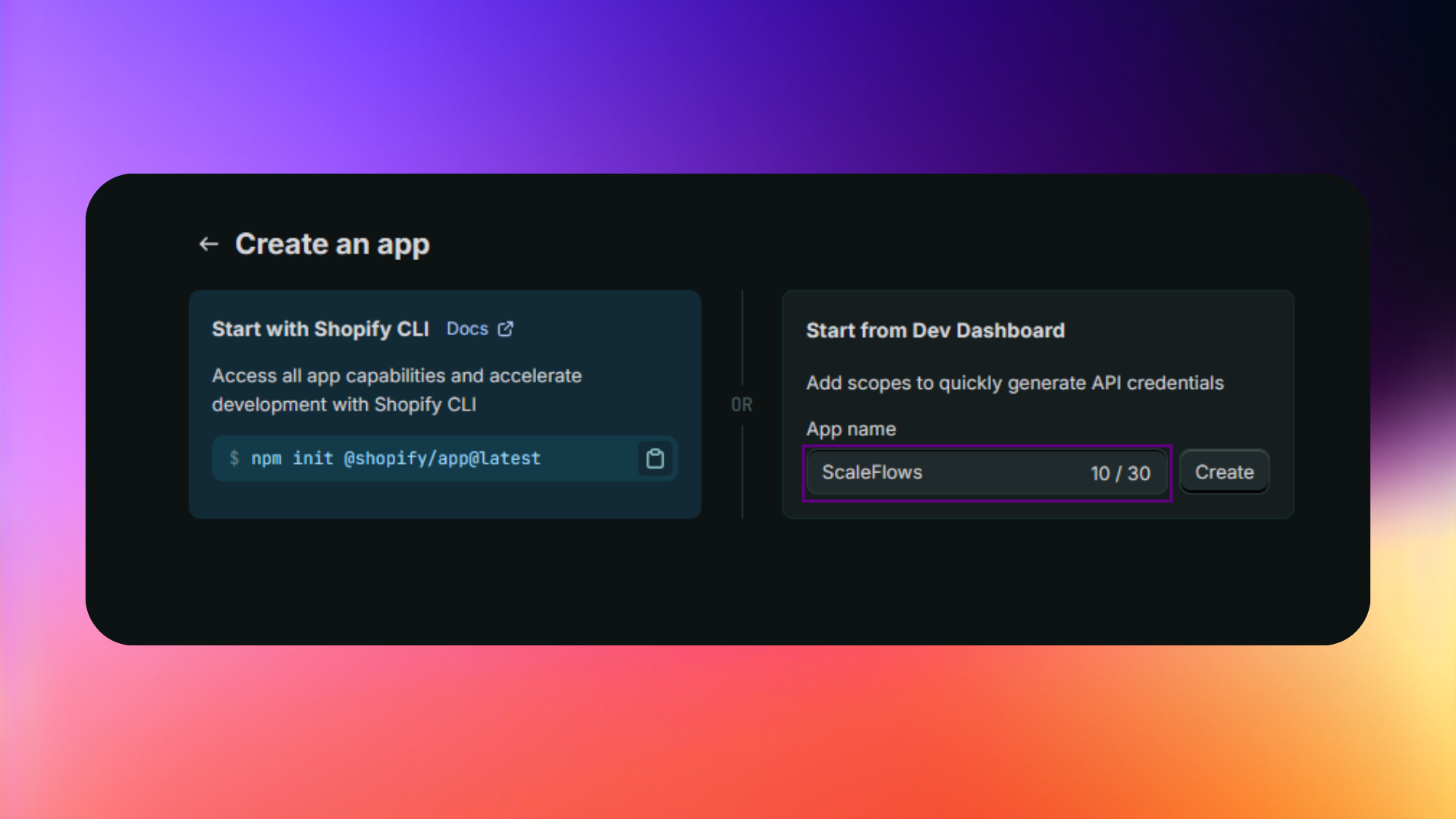
Step 3. Click Create an App. This will redirect you to your Shopify Developer Dashboard. Create an app then name it ScaleFlows.
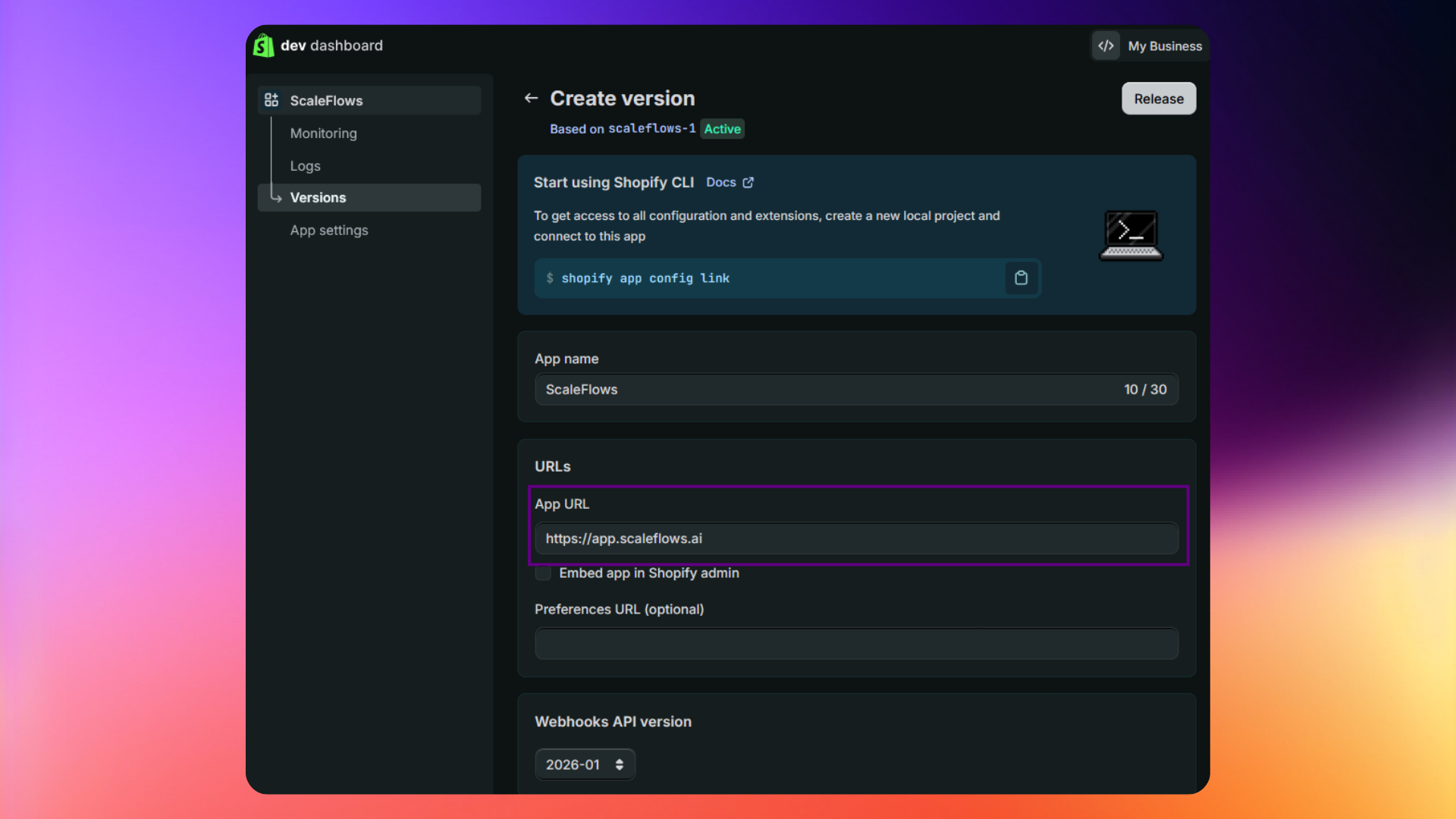
Step 4. Find the URLs section and paste the following into the App URL field:
https://app.scaleflows.ai
⚠️ Important: Make sure to uncheck the box that says "Embed app in Shopify admin".
Step 5. Under Admin API scopes, copy-paste the following permissions:
write_customers, write_discounts, read_all_orders, read_orders, write_orders, write_privacy_settings, write_products, write_returns, write_shipping, read_legal_policies, read_shopify_payments_disputes, read_shopify_payments_accounts
🚨 Warning: Copy the above Admin API scopes exactly as shown. Missing or incorrect scopes will prevent ScaleFlows from accessing order or customer data.
Step 6. Set Redirect URLs: Under Redirect URLs, add the following two links, separated by comma only:
https://api.scaleflows.ai/api/stores/shopify/callbackhttps://app.scaleflows.ai
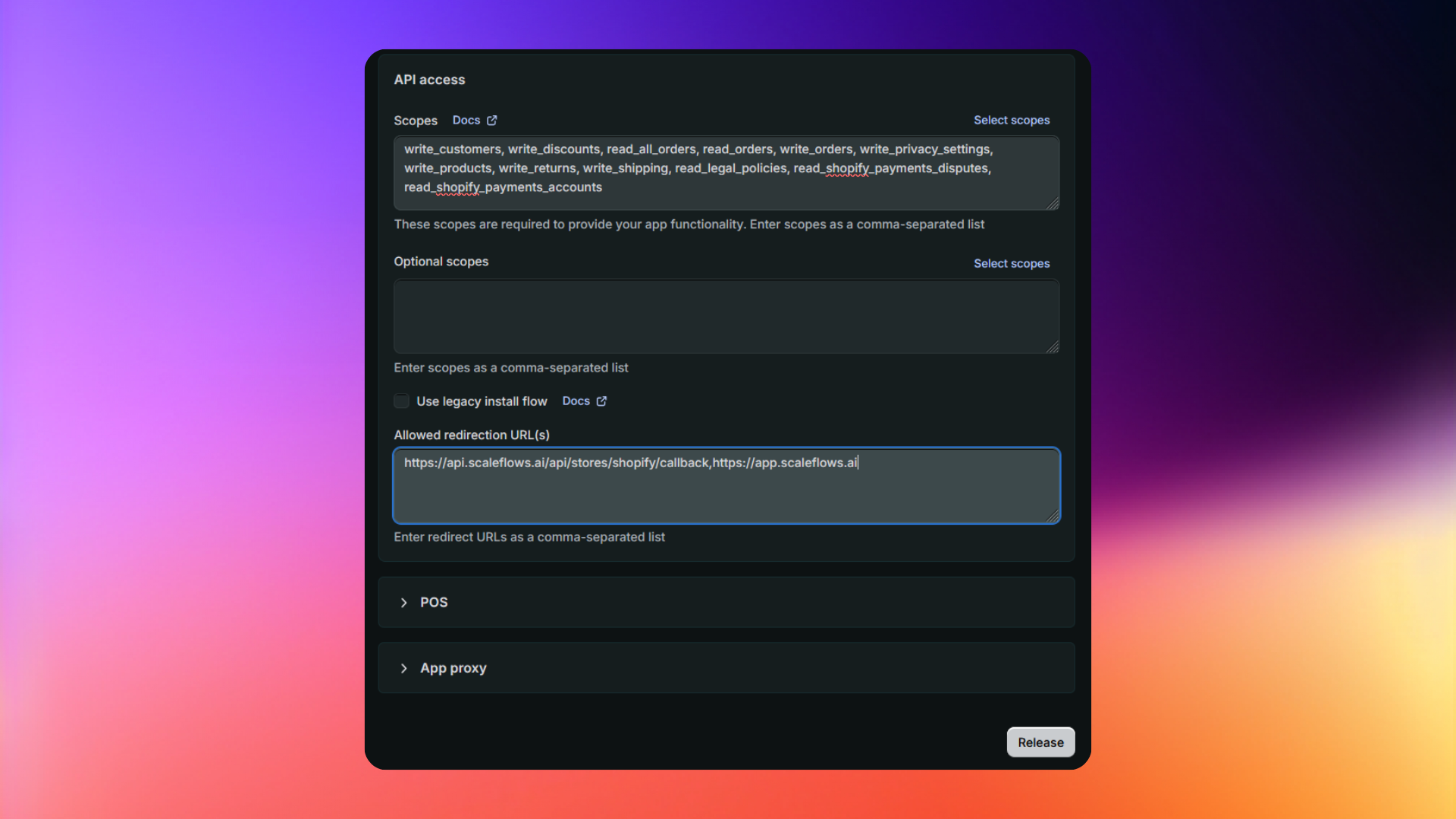
Step 7. Click Release, and confirm by clicking Release again to publish the app credentials.
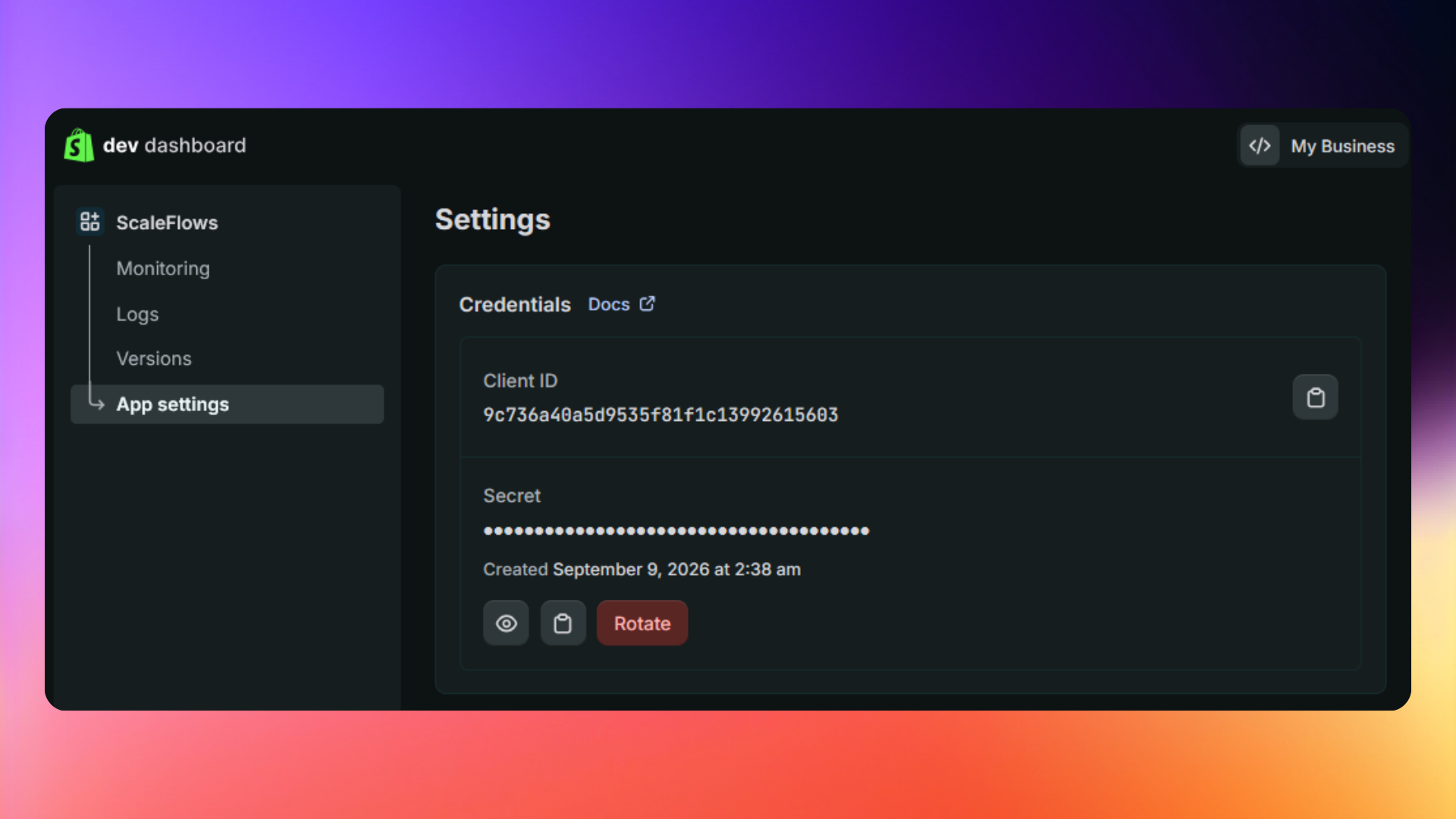
Step 8. Copy your App Client ID and App Client Secret, then paste them back into the ScaleFlows connection page (Step 3).
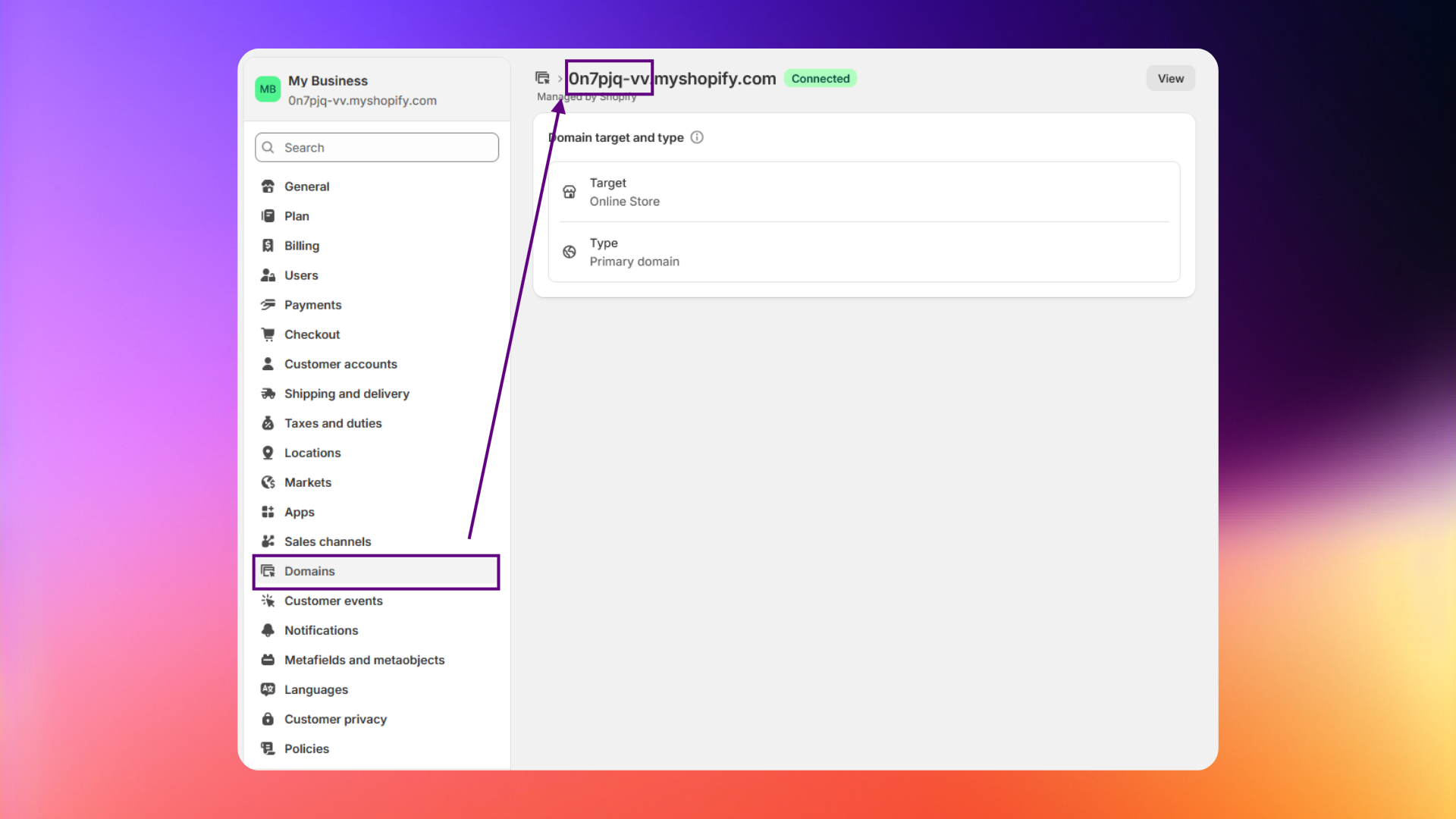
Step 9. Enter your assigned Shopify domain into ScaleFlows to complete the setup.
💡 Tip: You can easily find this by searching "Domains" in your Shopify admin dashboard.
✅ Success: Your Shopify store is now connected to ScaleFlows.