Inbox Filters

Sort and filter your inbox to find the right conversations faster.

Written By ScaleFlows Team

Last updated 22 days ago

💡 Tip: Use this to quickly sort and find messages, track specific orders, and prioritize specific conversations.
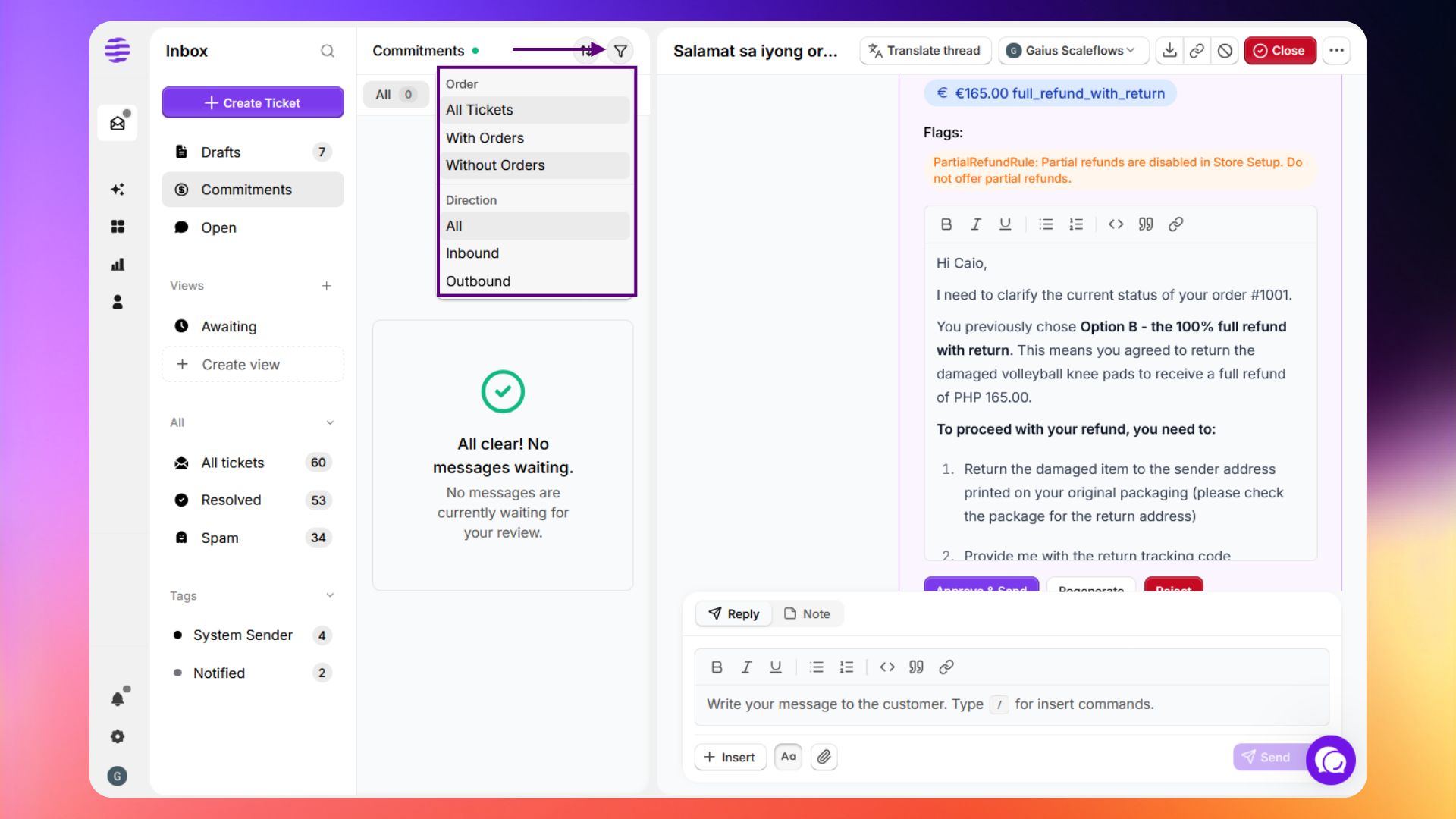
Inbox filters

Use filters to sort your inbox by recency, order status, reply state, or resolution.

Step 1. Click the funnel icon.

Step 2. Apply any of the following filters:

Order

Use these options to filter tickets based on their relation to customer purchases.

FilterDescription
All TicketsDisplays every ticket in the current view, regardless of order status.
With OrdersShows only tickets that are linked to a specific customer purchase or order number.
Without OrdersShows only tickets that are general inquiries and not tied to an existing order.

Direction

Use these options to filter based on whose turn it is to reply.

⚠️ Note: Apply the Inbound filter to focus on unresolved customer messages waiting for your response.

FilterDescription
AllShows tickets regardless of who sent the last message.
InboundDisplays tickets where the customer was the last person to respond, usually indicating they are waiting for your help.
OutboundDisplays tickets where an agent was the last to reply, usually indicating you are waiting on the customer.

Step 3. Use these options to sort tickets based on recency and read state.

Sort
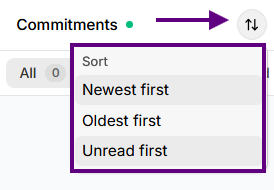
Sort options
FilterDescription
Newest firstDisplays the most recently created or updated tickets at the top.
Oldest firstDisplays the oldest tickets at the top, helping you find interactions that have been waiting the longest.
Unread firstPrioritizes tickets with new, unread messages so you can quickly see what needs your attention.