Email Forwarding
Forward your support inbox to your dedicated ScaleFlows address.
Written By ScaleFlows Team
Last updated 3 months ago
⚠️ Note: This is a required step to allow ScaleFlows to read incoming messages.
To set up email forwarding:
Step 1. Add your support email and choose how you want it to appear in your customer's inbox.
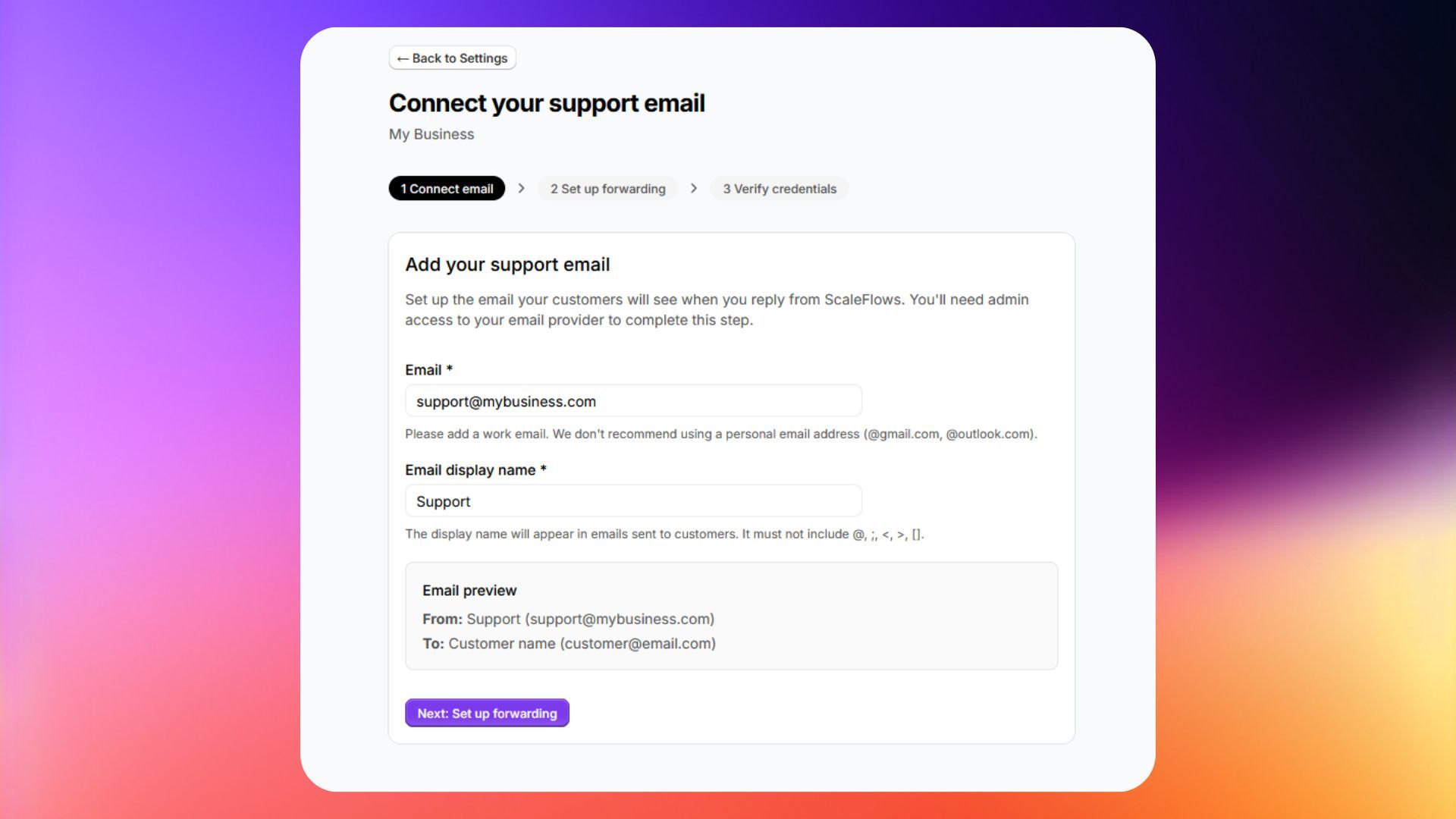
Step 2. Copy the dedicated forwarding email address assigned to you.
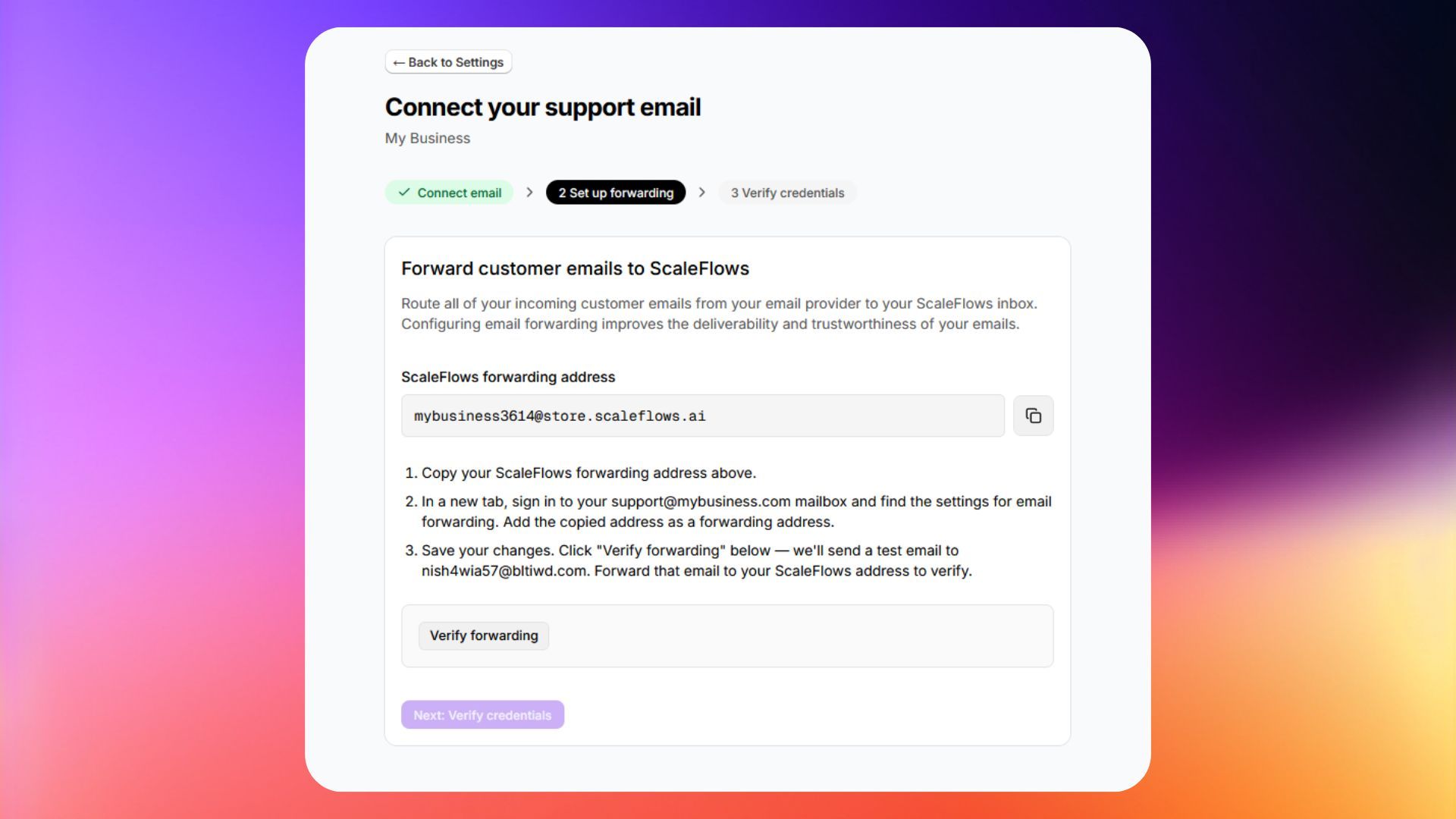
Step 3. Set up forwarding in your email provider using the relevant instructions below.
Gmail / Google Workspace
Gmail / Google Workspace
- Open Gmail.
- Go to Settings → See all settings.
- Click Forwarding and POP/IMAP.
- Press Add a forwarding address.
- Add the forwarding address you copied from ScaleFlows and confirm.
- Select Forward a copy of incoming mail and save.
- If Gmail sends a verification email, check your ScaleFlows dashboard and click the link. Then come back to this page to finish the setup.
Outlook / Office 365
Outlook / Office 365
- Open Outlook.
- Go to Settings → Mail → Forwarding.
- Turn on Enable forwarding.
- Paste the forwarding address you copied from ScaleFlows.
- Tick Keep a copy (recommended).
- Save.
iCloud Mail
iCloud Mail
- Go to iCloud Mail.
- Click Settings (gear icon).
- Select Rules.
- Add rule: If message is received → Forward to: (paste the forwarding address you copied from ScaleFlows).
- Save.
Yahoo Mail
Yahoo Mail
- Open Yahoo Mail.
- Go to Settings → More Settings → Mailboxes.
- Choose your email address.
- Add the forwarding address you copied from ScaleFlows.
- Confirm the verification email.
PrivateEmail (Namecheap)
PrivateEmail (Namecheap)
- Log in to PrivateEmail Webmail.
- Go to Settings → Mail → Auto Forward.
- Enable Auto Forward and paste the forwarding address you copied from ScaleFlows.
- (Optional) Keep a copy in your inbox.
- Save.
Step 4. Return to ScaleFlows to continue with the DNS verification.
✅ Done! From now on, all your customer emails will be received by your ScaleFlows inbox.
Was this helpful?
Still need help? Ask the team